
Custom Software Projects
Admin dashboard design: Make the next task clear
Design an admin panel around everyday work. Test summaries, tables, search, actions, errors and permissions through realistic tasks and user decisions.
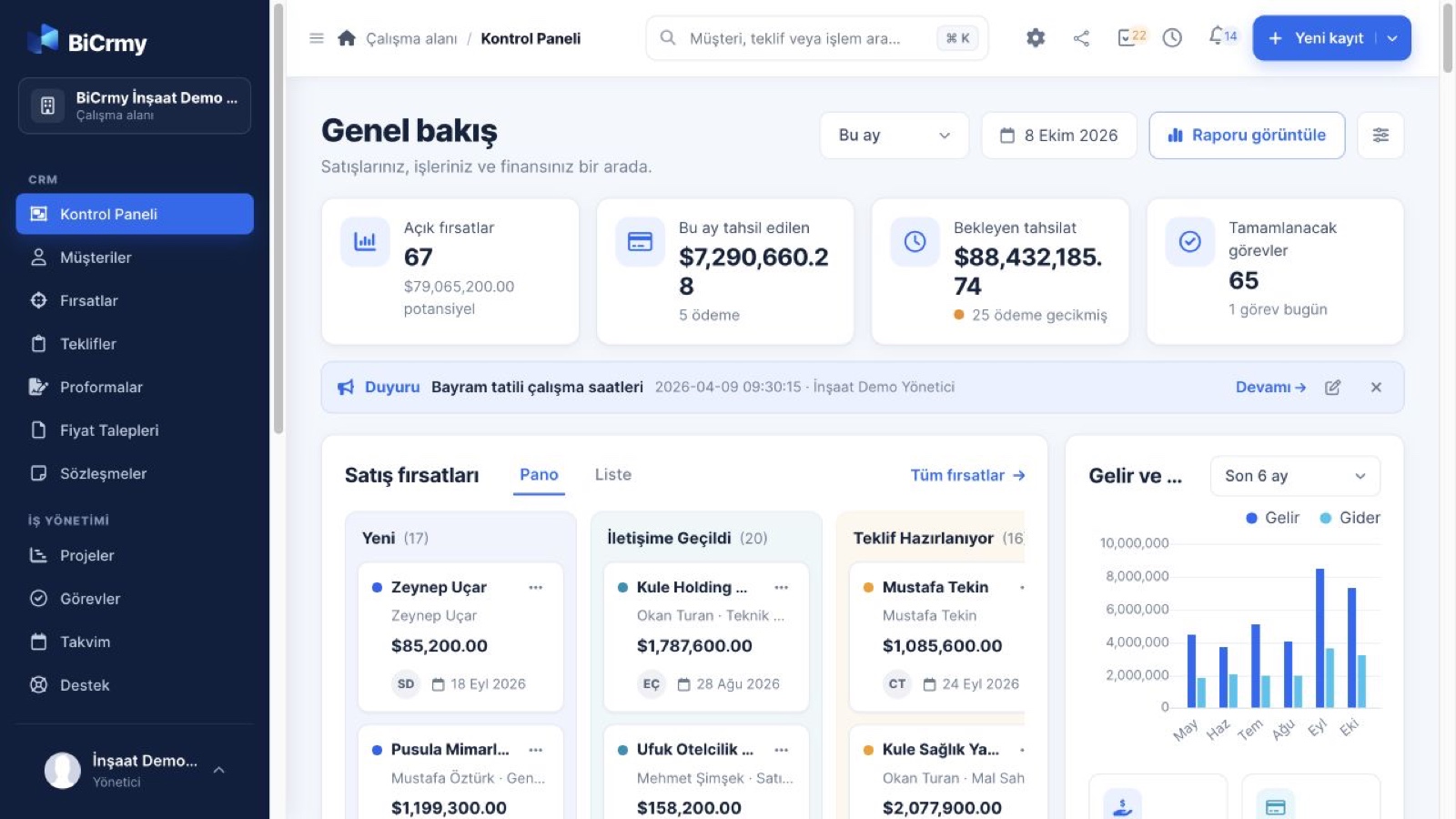
If employees open the administration panel and immediately consult another spreadsheet, ask what the opening screen actually helps them do. Customer totals, colourful charts and the last login date can occupy plenty of space without showing which enquiry needs a response today. Admin dashboard design should help people find their next task as well as inspect business information. The distinction between an attractive summary and a usable workspace often appears here. A user needs to understand what deserves attention and what action can follow it.
Imagine a service company managing incoming requests through a custom application. A customer representative reviews new enquiries, an operations coordinator assigns work and a manager watches unresolved cases. Three people need the same underlying information for different decisions. The scenarios in this guide are hypothetical design examples, not reported customer results. The aim is not to prescribe one collection of dashboard components. Understand the workflow, arrange information around it and check the interface under conditions that resemble the work people actually perform.
Observe the daily task before drawing the home screen
Asking users which features they want can help, but it does not replace observing their work. Where do they begin in the morning? What do they copy elsewhere? When do they ask a colleague for information? In our example, a representative may mark yesterday’s unanswered enquiries in a separate document. That behaviour suggests a missing task view. A reliable list of enquiries awaiting contact could be more useful than another chart. Connect the design proposal to the operational need you have observed rather than treating a requested component as the requirement.
Discuss a specific record instead of asking only about general habits. What happened when this enquiry arrived? Record the trigger, information used, decision and completion condition. Distinguish frequent actions from rare but consequential ones; they may need different kinds of visibility. Turn the observations into short task descriptions, such as assessing a new request, obtaining missing information and assigning work to an appropriate team. Menu labels and opening screen priorities should follow this understanding. Drawing navigation first can force users to fit an organisational structure that never matched their actual workflow.
Give each summary card a decision to support
A counter showing thousands of historical records does not explain today’s work. Requests awaiting review, overdue responses and unassigned tasks may have a more direct connection to action. For each summary card, ask which decision a user can make after reading it. A number does not become important because it is large or displayed prominently. Particularly in an operational panel, the visual hierarchy should reflect task priority and role. Information that supports an occasional management review can live elsewhere without becoming unavailable to the people who need it.
Design the route from a summary to its underlying records. Selecting the waiting requests count should open a list that follows the same definition. If the card counts only the user’s team while the destination shows the entire business, explain the scope clearly or align the two views. Show the reporting period and refresh status when those affect interpretation. People should not make a new assignment decision from unexplained old data. Defining a metric, its scope and its destination together reduces the need to recalculate or investigate what the interface meant.
Choose table columns for the decision at hand
A request may have twenty recorded fields without needing twenty visible columns. Prioritise the information required to recognise the correct record and select the next action. Request name, status, owner, waiting time and latest activity could provide a starting point for our service workflow. The appropriate selection depends on the task. Long notes, technical identifiers and infrequently used information can remain available in a detailed record view. The list should support scanning and comparison while preserving a clear route to the additional context needed for an informed decision.
Use column headings that reflect language the team understands. Broad labels such as active or process can hide several meanings. Explain what a state describes and who can change it. Make sort direction visible, show units and clarify what an empty value means. If users need personal column settings, begin with a useful default layout. They should not have to repair an unsuitable first screen before doing their job. Test with realistic text lengths and mixed record states rather than a perfectly regular demonstration dataset that conceals awkward wrapping or ambiguous information.
Preserve context through search and filtering
A representative who knows a customer’s name may need search. Someone reviewing every unanswered request needs a filter. Do not treat these as identical interactions. Explain the fields searched and make active filters visible. When no results appear, users should understand whether there are no records at all or none matching the current conditions. Make clearing the conditions straightforward. Returning from a record detail to the list should preserve useful search context. Rebuilding the same selection repeatedly can become a substantial burden in a busy administration workflow.
Saved views may help with recurring work. A view for requests assigned to me and awaiting a reply today avoids rebuilding the same filter each morning. Its definition still needs to be understandable. Does today move with the calendar, or is the view tied to a fixed date? What happens after a team change? Make excluded records and scope understandable enough to prevent a mistaken operational decision. An invisible filter can lead someone to believe that work is complete when relevant cases remain elsewhere. This is an interface problem worth addressing explicitly.
Name actions by the result they produce
An OK button might close a window, save a record or finish a task. Mixing those meanings within one application makes mistakes easier. Prefer action labels that describe the outcome, such as assign task, save changes or archive request. Establish a clear primary action rather than giving every button the same visual weight. For consequential actions, consider wording and placement together. A confirmation dialog should not become a permanent patch for an unclear label. Explain enough before the action that the person can make an informed choice without repeatedly dismissing generic warnings.
Bulk actions require an especially clear selection boundary. Has the user selected the visible page or every record matching the filter? State this before applying the change. Someone intending to archive twelve requests should not unintentionally affect thousands because the distinction was represented only by a colour. Separate reversible actions from permanent effects. Afterwards, report how many records changed and identify any that could not be updated. Silently skipping failed rows can make a user believe the work is finished when a portion of the selected group still needs attention.
Design saving, failure and concurrent editing states
A form has more states than empty and complete. It may be saving, disconnected, missing required information or affected by another employee editing the same record. Users need to know whether their submission was received. Error messages should identify a useful correction while preserving valid information already entered. If repeated attempts create duplicate records, the underlying transaction behaviour needs attention alongside the interface. Discuss this boundary with the development team. A reassuring message cannot compensate for an operation whose actual outcome remains unknown to both the user and the application.
Deliberately test two people editing one request. A representative may update a telephone note while an operations coordinator changes the assignee. If the last save overwrites all earlier values, a polished form can conceal lost information. Where a conflict occurs, explain what changed and which safe action is available. The technical approach depends on the application and the affected data. The design requirement is an understandable, reliable outcome. Testing should verify it with the actual concurrent scenario rather than assuming that two successful individual demonstrations prove the combined workflow works.
Separate role-specific views from real authorisation
A representative and a manager do not necessarily need the same opening screen. One may focus on personal outstanding requests while the other reviews team workload. Hiding a button, however, does not enforce permission. The server must also check whether the action is authorised. During design, map which roles may inspect each type of information and perform each action. Examine consequential operations individually instead of assuming that a manager should automatically do everything. Limiting unnecessary exposure of personal information belongs in the same discussion about what each user needs to complete their work.
Plan the experience when access is unavailable. If someone follows a link to a request that has moved outside their team, an unexplained blank screen is unhelpful. In some situations, a route to request access is appropriate. In others, revealing that a particular record exists may itself be unsuitable. Decide with the business owners who understand the information and its sensitivity. Helpful interface feedback and restricted disclosure must follow the real access rules. Include these permission scenarios in design acceptance so they do not emerge as improvised messages near the end of development.
Check mobile use and accessibility through complete tasks
Shrinking a desktop table onto a phone may fail to support someone working away from a desk. That person might only need to open an assigned job and report a status change. A simpler task view could be suitable. When turning a comparison-heavy table into cards, preserve the relationships users need and make hidden details discoverable. Determine which tasks happen on which devices through observation rather than assumption. A screen can look responsive while forcing an unnecessary sequence of taps or removing the information required to choose the correct record.
Keyboard navigation, visible focus, meaningful field labels and status information that does not rely only on colour are also part of a working admin panel. A successful mouse demonstration is insufficient. Find a sample request, open it, change it and save it using the keyboard. Check whether action controls remain reachable when the page is enlarged and whether focus makes sense after an error. Within BiKreatif’s custom software project service, these tasks can inform design, implementation and acceptance together. The result can then be assessed against actual work instead of appearance alone.
Frequently asked questions
Does an administration panel always need charts?
No. A chart is useful when it helps someone understand a comparison or trend. If the immediate task is responding to waiting enquiries, a prioritised list may offer more value. Explain the decision supported by each component. Charts added mainly for visual variety can crowd the opening screen and make the primary operational task harder to find.
Should every role have a completely separate dashboard?
Not necessarily. Shared components can remain consistent while the opening view and permitted actions vary by role. Base the decision on tasks and access rules. People using the same information for different decisions may need different priorities. Remember that a role-specific presentation does not replace server-side checks of the actions and data the person is authorised to access.
How many columns should a data table contain?
There is no universal number. Identify the fields needed to recognise, compare and act on records. Fewer columns do not always mean better understanding; important context can disappear. Test realistic content on the devices people use. Preserve access to details while placing information unnecessary for the everyday task outside the main scanning view.
What should an empty screen explain?
A new account without records differs from a filter returning no matches. The first situation may need a suitable starting action. The second may need a way to adjust or clear conditions. Avoid making people think that information has been deleted. Explain why the view is empty and what they can safely do next in that particular context.
How can we judge whether the design works well?
Ask representative users to complete realistic tasks. Can they find the right record, understand the outcome and recover from a problem? Do not treat speed as the only measure; observe incorrect actions and requests for help. Connect each finding to a specific screen and task, then check whether the next revision resolves that same problem.